How Roblox Voice Chat Works: Requirements, Verification and Proximity Audio Explained
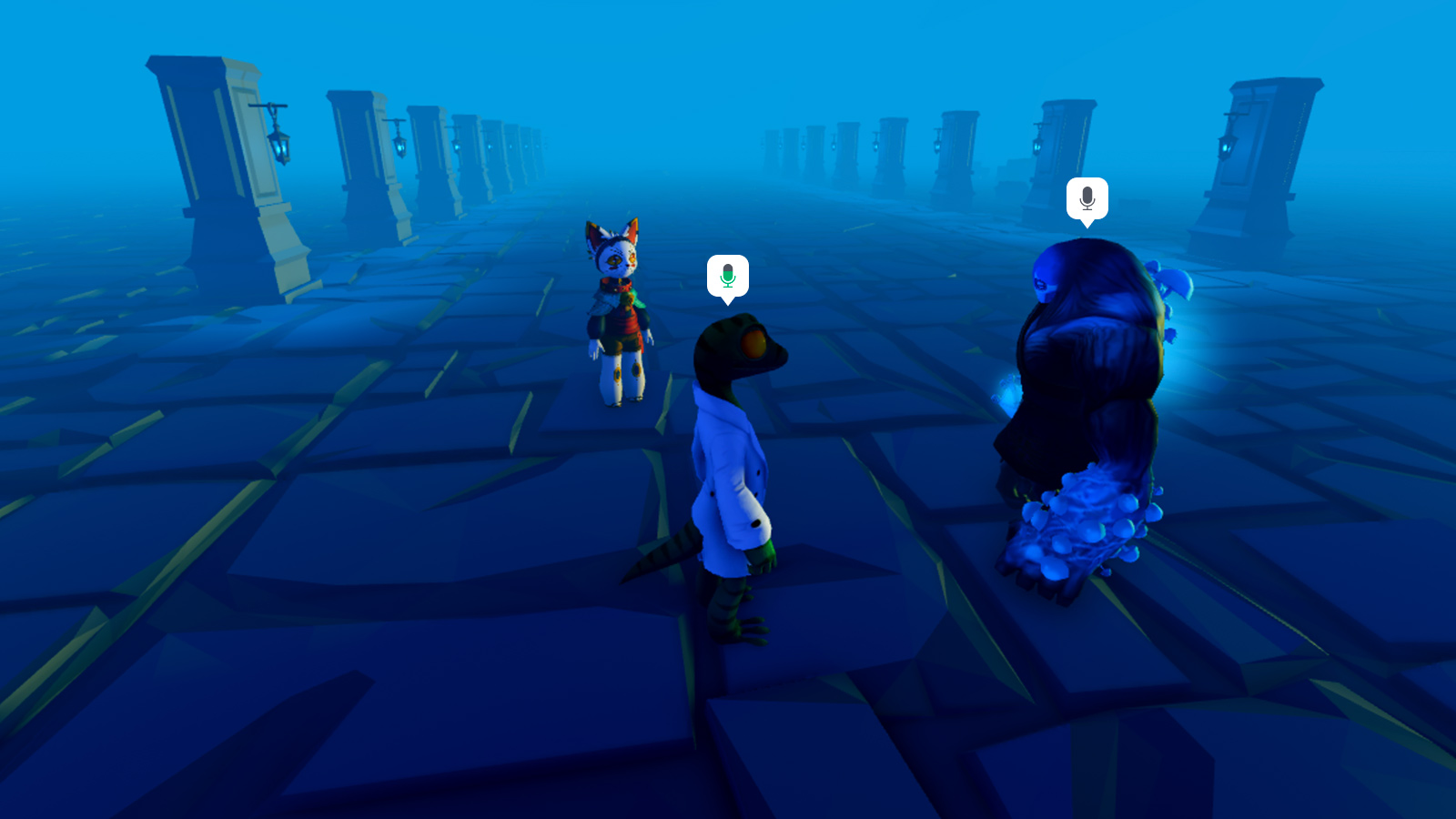
Roblox's Voice Chat lets age-verified players talk in real time using proximity-based audio, but it only works in experiences capped at 100 players and only once a developer has switched it on. Here's exactly how to check your eligibility, turn it on, and understand how the audio behaves once you're talking.
Roblox has had text chat since the beginning, but talking out loud to the people standing next to your avatar is a newer, and more tightly controlled, feature. Voice Chat lets verified players speak in real time inside supported experiences, with volume that changes based on how close your avatars are standing. It isn't available to everyone automatically, and it isn't on in every game either — both the player and the experience have to meet Roblox's requirements first.
Here's exactly what Voice Chat is, who can use it, how to check your own eligibility, and how the proximity-based audio actually behaves once you're talking.

1. What Roblox Voice Chat Actually Is
According to Roblox's own Creator Documentation, Voice Chat is a real-time spoken communication feature that is, by default, proximity-based: a speaking player's volume depends on how far away their avatar is from yours in the game world. Stand close to someone and they come through clearly; walk away and they fade out, the same way a conversation would work if you were standing in the same room.
The feature is also capped by experience size. Roblox's documentation states that Voice Chat "is only available for places that support a maximum of 100 players," so it won't appear in every game you join — only in ones built (or configured) under that player limit.
2. Who Can Use It: Age and Verification Requirements
Voice Chat is restricted by age and identity verification, not just turned on for every account. Roblox's Creator Documentation says it is "currently available to all 13+ age-verified users in a specific set of countries," with a Voice Chat FAQ spelling out exactly which countries qualify. If you're outside that list, Roblox's documentation says you can still unlock the feature through ID verification instead.
That verification step is the same one Roblox uses to unlock several other age-restricted features. Roblox's official account verification documentation explains that completing it connects your Roblox account to your real-world identity "either through an age check or via government ID," and that doing so unlocks things like distributing more Creator Store assets, monetizing plugins, and "access to age-restricted Studio features, such as voice chat."
If you go the government ID route, Roblox's documentation lists the requirements plainly: you must be at least 13 years old, have a government-issued photo ID that shows your picture (a driver's license, passport, or residency permit all qualify), and have a mobile device with a working camera to scan it. Roblox says it checks the document using "advanced image processing technology," and points users to its Privacy Policy and Facial Media Capture Notice for details on how that image data is handled. If your account instead qualifies for the lighter-weight age check available in supported countries, you won't need to submit a photo ID at all.
3. How to Check and Turn On Voice Chat Yourself
Verifying your account is done entirely from your Roblox Settings, and it's the same place on both roblox.com and the mobile app:
- On roblox.com, click the gear icon in the top-right corner of the page to open Settings. On the app, tap the More (⋯) menu instead.
- Open the Account Info tab.
- Under your birthday, select Continue with ID (or the age-check option, if your account is offered one).
- Follow the prompts: allow camera access, scan the front of your ID — and the back too, if it has a barcode — then take a photo of yourself so Roblox can match it to the document.

Roblox's documentation notes that verification "can take a few minutes" to process, after which your verified birthday appears under Account Info. Once your account is eligible, Voice Chat itself isn't forced on automatically — Roblox's Creator Documentation specifies that "eligible 13+ users can opt in from their account Settings page or from within a voice-enabled game." After you've opted in once, you can use voice in any Roblox experience that supports it, without repeating the process each time.
Voice Chat and Roblox's broader age-verification system share the same underlying check, so it's worth reading them together. Our breakdown of Roblox's facial age estimation and chat tier system covers how the platform groups verified users by age bracket for text chat — the same verified status that determines whether the Voice Chat option shows up in your Settings in the first place.
4. How the Proximity Audio Behaves In a Game
Once you're talking, the microphone icon above your avatar is the only on-screen indicator that you're transmitting — there's no persistent voice overlay or player list showing who's connected. Roblox's documentation confirms the proximity behavior is the default setup for any newly published, voice-enabled experience: volume scales with in-game distance, so a conversation naturally breaks up the way it would between small groups standing apart in a crowd.
That default isn't the only way a developer can configure it, though. Roblox's Creator Documentation describes two common alternatives that experience creators can build using the VoiceChatService API:
- Team-based voice, where only players on the same in-game team can hear each other, regardless of distance.
- Non-spatial voice, where every connected player is heard at equal volume no matter where their avatar stands — with an option for developers to stop players from hearing their own voice echoed back.
Which version you get depends entirely on the specific experience, so don't assume every voice-enabled game behaves like the last one you played — a team-based shooter and an open hangout space are likely to have configured it very differently.
5. For Creators: How Developers Turn Voice Chat On
If you build on Roblox, enabling Voice Chat for your own experience is a Studio setting, not a code requirement by itself. Roblox's documentation walks through it as follows: open File > Experience Settings in Studio, go to the Communication tab, and toggle Enable Voice Chat on. There's a second toggle, Enable Camera, which lets verified users' avatars animate along with their real facial movement if they allow camera access — that one is optional.
The 100-player cap mentioned earlier isn't just a backend limit; Roblox's documentation says places with a higher max player count have to be reduced to 100 or fewer through the Creator Dashboard (Configurations > Places > Access > Maximum Visitor Count) before Voice Chat will work, and recommends restarting servers afterward so the change takes effect. Developers who want to turn voice off for a specific place entirely can instead add a VoiceChatService instance and disable its EnableDefaultVoice property — Roblox's documentation recommends this over raising the player cap as the more reliable way to keep a place voice-free.
6. If You'd Rather Not Use It
Voice Chat is opt-in on both sides: Roblox doesn't enable it for your account without you completing verification and opting in through Settings, and a developer has to have switched it on for their specific experience before it does anything at all. If you've verified your account but decide you don't want voice enabled, the same Settings path you used to opt in is where you'd go to turn it back off. And because every experience controls its own Communication settings, simply avoiding games that advertise voice support — or games where you don't see a microphone icon over any avatar — keeps you in text-chat-only territory without touching your account settings at all.
If you're setting up an account for a younger player, our guide to Roblox's parental controls for chat and spending covers how account-level restrictions interact with features like this one, including the settings a parent or guardian can manage directly.
Quick Tips Recap
- Voice Chat is proximity-based by default — volume depends on avatar distance, not a fixed channel.
- It only works in experiences capped at 100 max players, and only if the developer has switched it on.
- You need to be 13+ and account-verified — either through a quick age check in supported countries or by submitting a government ID everywhere else.
- Verification and Voice Chat opt-in both live under Settings > Account Info on roblox.com or the app's More menu.
- A microphone icon above an avatar is the only reliable way to tell someone is currently talking.
- Developers can reconfigure it into team-only or equal-volume chat, so behavior varies from game to game.
Voice Chat is one of several account-level systems Roblox has built around age verification in the past couple of years, alongside trading safeguards and chat restrictions. If you want the fuller picture of how verification status affects what you can buy, sell, and trade, our guide to how Roblox's trading and scam-prevention systems work is a good next read. For everything else happening on the platform, our full Roblox walkthrough archive is kept up to date as new guides go live.