How Roblox Groups Work: Creating a Group, Roles, Permissions and Payouts Explained

Roblox Groups let multiple creators share assets, assign roles with specific permissions, and automatically split Robux between members. Here's exactly how group creation, the role hierarchy and the one-time and recurring payout tools work, straight from Roblox's own Creator Documentation.
Most Roblox creators start out building alone, but almost every experience that grows past a hobby project ends up being run by more than one person. Roblox's built-in answer to that is the Group system: a shared account that multiple people can own assets through, build inside, and get paid from. It is not the same thing as a Discord server or a friends list — it is a formal studio structure with its own roles, permissions and payout tools, and most of what it can do is easy to miss if you have never opened the Creator Dashboard.
Here is exactly how Roblox Groups work, based on Roblox's own Creator Documentation: what creating one costs, how roles and permissions are structured, how group-owned games are managed, and how Robux actually gets split between members.
1. What a Roblox Group Is (and Why Creators Use One)
A Roblox Group is a page-owned identity that multiple accounts can be attached to, each with their own role. Groups exist so that a team can share assets, work on the same experience, split profits, and get public credit for a game without one person having to own everything personally. Roblox's documentation is direct about the limits of this, though: the platform "cannot help arbitrate or resolve disagreements" between members, so the role and permission system below is the only real safeguard a studio has.

2. How to Create a Group
Creating a Group costs 100 Robux, which is paid at the moment of creation — so you will need Robux in your account first. If you are not sure of the fastest legitimate way to build up a balance, this breakdown of every legitimate way to buy or earn Robux covers the options.
To actually create one: open the Creator Dashboard, use the account switcher in the upper-left corner, and click the plus (+) button. From there you upload a logo, enter a name, and click Purchase. Once the group exists, its profile page lets you attach up to three social links. Roblox's documentation also recommends reading the group management rules before you create one, since a Group's name and ownership structure are not trivial to undo later.
3. Roles and Permissions Explained
Every member of a Group holds one or more roles, and each role carries its own permissions. Only the group's owner, or a member who has specifically been given permission to manage roles, can create or edit them. Roles are ranked in a hierarchy — a member can only manage or remove roles ranked below their own — and each role can be marked public (visible on the group's community page and in-experience) or private, which only changes visibility, not what the role can actually do.
Permissions are organized into three categories:
General permissions
- Manage roles, and assign or remove roles from members
- Invite or approve new members, kick and ban members (only those ranked below you)
- Configure the group's profile and view audit logs
- Manage the group's allies and enemies
Creation permissions
- Playtest, edit and publish group-owned experiences
- Manage share links, in-experience events, monetization and secrets
- View analytics and manage alerts
- Manage moderation, avatar items, API keys, Data Stores and webhooks
Community permissions
- View and create announcements
- Manage forum categories, posts, comments, pins and locks
- View and manage content moderation, and bypass slow mode
- View community analytics
Several creation permissions can also be granted on a per-game basis rather than group-wide, which is useful for a studio running more than one project with different teams on each.
4. Two-Factor Verification for Sensitive Actions
Roblox requires two-factor verification before a member can use the permissions most likely to cause real damage if an account is compromised: managing roles, assigning or removing roles, managing access to the group's resources, managing and spending group revenue, and deleting Data Stores. If you are setting up a studio with several members, it is worth confirming everyone with elevated permissions actually has 2FA turned on, since that step is what stops a single hijacked account from being able to drain the group or lock everyone else out.
5. How Group-Owned Games Work
Experiences owned by a Group can be played, edited, published and analyzed by members according to whatever role they hold — a member with edit access can pull in the group's shared assets, but cannot save a place from one group game into a different one. That matters if your studio is just getting off the ground: a lot of first-time creators publish solo first and move an experience into a Group once a real team forms. Roblox Studio's beginner workflow is the right starting point if you have not published anything yet.
6. Splitting Robux Between Members
This is the part most solo creators never see, because it only shows up once a Group actually has revenue to manage. Owners and members with Group Revenue permissions get access to a Payouts page under Finances, with two different ways to move Robux.
One-time payouts

A one-time payout sends Robux to collaborators in a batch, either through the Send Robux button for individual payments or by uploading a CSV file with userId and payoutInRobux columns for a larger team. This is the tool for a one-off bonus or a project that is finished and being paid out once.
Recurring percentage splits
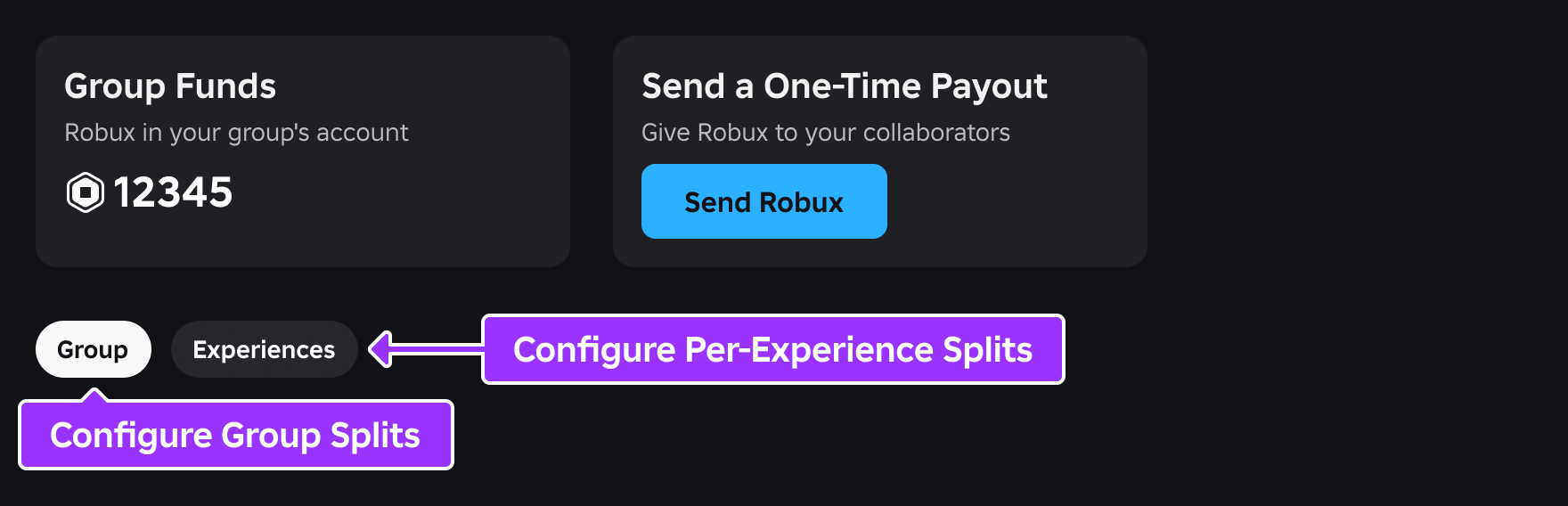
For ongoing revenue, Groups support recurring percentage splits that can be set for the whole group or configured separately per game. Each member assigned to a split gets a set percentage of earnings, and whatever is left over after everyone's cut rolls into the next split level, with any final remainder landing in the group's own balance.
Roblox's documentation walks through a worked example that makes this easier to follow:
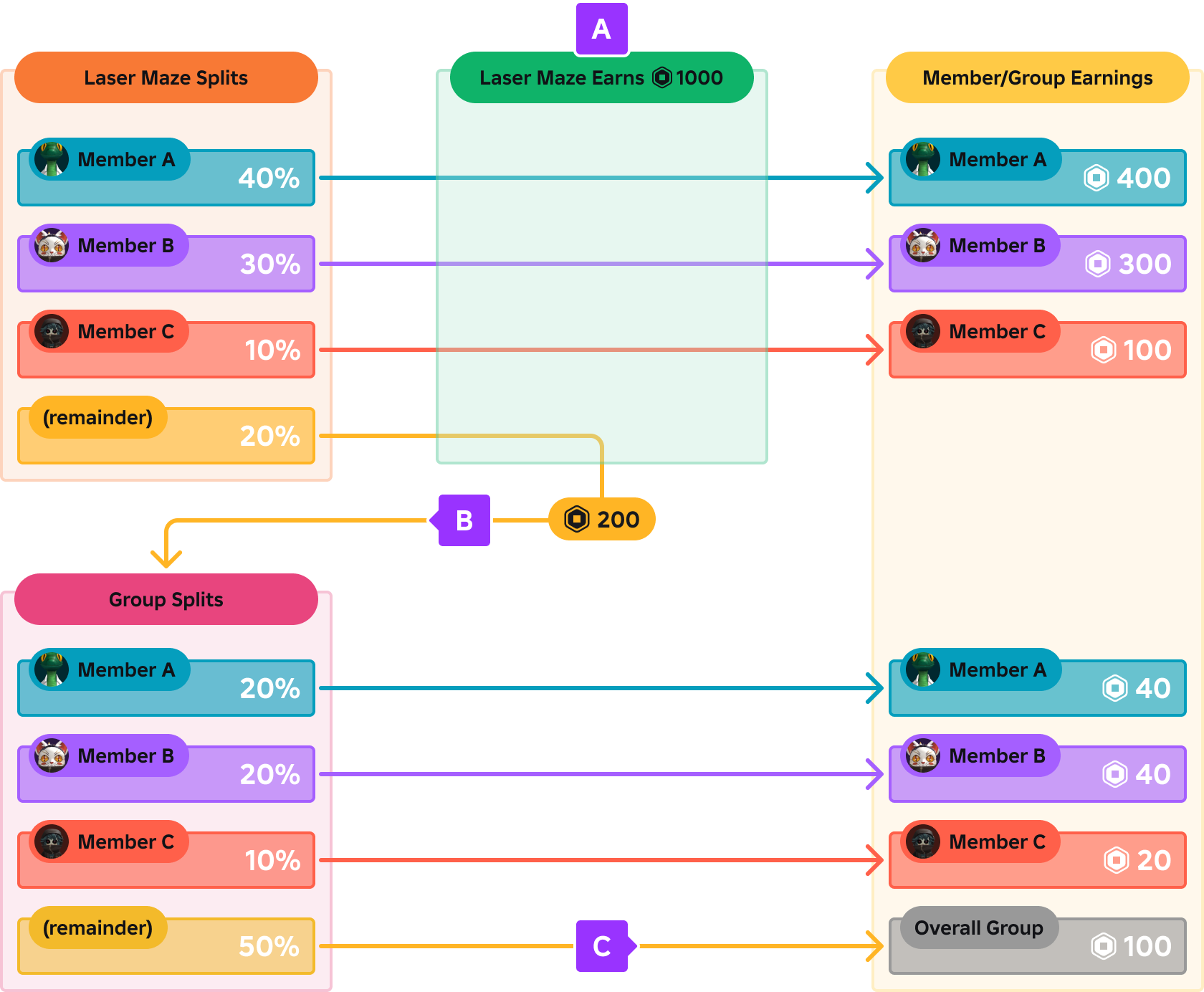
In the example, a game earns 1,000 Robux. The game-level split pays Member A 40% (400), Member B 30% (300) and Member C 10% (100), leaving a 20% remainder (200 Robux) that flows into a second, group-level split. That group split pays the same three members a further 20%, 20% and 10% each (40, 40 and 20 Robux), with its own 50% remainder — 100 Robux — finally landing in the group's balance rather than any individual's account.
A couple of limits are worth knowing before you build a split around them: payouts cannot be shared this way for games that charge for paid access in local currency rather than Robux, and private server subscription splits are locked in at the moment someone actually purchases the subscription. If your studio is also thinking about how Robux converts to real payouts further down the line, this explainer on how Robux, Premium and DevEx fit together covers that end of the pipeline.
7. Managing Members and Keeping an Audit Trail
New members can be brought in either by inviting a specific username or by sharing the group's join link, with whatever starting role you choose. Every meaningful change — role edits, permission changes, membership actions — gets logged, and members with the View Audit Logs permission can review that history through Activity History on the Creator Dashboard or the Audit Log on the group's Communities page. For any studio with more than two or three people, checking that log occasionally is a cheap way to catch a problem before it becomes a dispute Roblox itself will not step in to settle.
8. Protecting Your Work: Place Copying and Intellectual Property
One setting is easy to overlook and hard to undo: Place Copying. Turning it on lets the wider community copy a creation's assets, which is the opposite of what most studios want once they are building something with real value. Before you add private or paid assets to a group-owned project, it is worth confirming three things at once — that Place Copying is actually disabled, that roles are assigned to the right people, and that each role's permissions are set the way you think they are. Getting any one of those wrong defeats the point of locking the project behind a Group in the first place.
9. Real Creator Teams: The Roblox Creator Showdown
Group tools exist because Roblox's creator economy is genuinely built around teams, not just solo developers. A recent example: on October 14, 2026, Roblox announced the Brazil Creator Showdown, its third annual Creator Showdown and its first event held outside the United States. Eight Brazilian creators, competing in four two-person teams, are set to face off live from São Paulo across five Roblox experiences — including Showdown: Anime FPS Jutsu Shooter, Clean Crew and FIFA Super Soccer — for a top prize of R$50,000, with R$25,000, R$15,000 and R$10,000 for second through fourth place. The livestream airs in both Portuguese and English through Roblox's official YouTube, Twitch and TikTok channels. It follows an April 2026 showdown held in Las Vegas that offered a $50,000 top prize. None of this runs through the Group feature directly, but it is a useful reminder of how much of Roblox's top-end creator activity already happens in teams — exactly the kind of collaboration Groups are meant to support day to day. For more on finding people to team up with or play alongside in the first place, Roblox's friends and party tools are the starting point before anyone needs a formal Group at all.
Quick Tips Recap
- Creating a Group costs 100 Robux and is done from the Creator Dashboard's account switcher.
- Roles are ranked by hierarchy, and permissions split into General, Creation and Community categories.
- Turn on two-factor verification for anyone with role management or revenue permissions.
- Use one-time payouts for a single bonus, and recurring splits (group-wide or per-game) for ongoing revenue.
- Check the audit log periodically, and keep Place Copying off if the project includes private assets.
For the full technical reference — including the Open Cloud Groups API for programmatic role management — see Roblox's own documentation linked below.